How to Update cPanel to Fix the CVE-2026-41940 Vulnerability (Step-by-Step)
Nothing drops a server admin’s stomach quite like a critical security alert. I have spent 20 years managing web servers. Over that time, I have seen my fair share of major exploits. The latest cPanel CVE-2026-41940 security vulnerability is easily one of the worst.
Hackers are actively using this flaw right now. They can bypass your login screen. They do not need a password. They do not even need an active account. Once inside, they have full control. This means they can steal data, install malware, or wipe your server completely.
You need to act fast. You must learn how to update cPanel CVE-2026-41940 immediately.
In this guide, I will walk you through exactly what to do. I will share the exact steps I use to secure my own servers. We will cover the cPanel security update 2026 in detail. I will show you how to apply the fix cPanel authentication bypass patch. We will look at how to run the cPanel upcp command safely. By the end, your server will be locked down and secure.
For more in-depth information about this critical vulnerability, check out our main blog post, cPanel Hack 2026: CVE-2026-41940 Zero-Day Nightmare – 70M Domains at Risk, where we detail the risks and provide expert insights on safeguarding your servers.
Why Is the CVE-2026-41940 cPanel Update So Urgent?
This is not a minor bug. This is a full-blown crisis for the hosting industry. Let me break down exactly why you cannot ignore this cPanel patch CVE-2026-41940.
For a deeper understanding of potential vulnerabilities and how to assess if your server has already been compromised, check out our blog post, “Was My Website Hacked? How to Check If Your cPanel Server Was Compromised.”
CVE-2026-41940 — What It Is and Why the CVSS 9.8 Score Matters
Security experts grade vulnerabilities on a scale from 1 to 10. The National Vulnerability Database gives CVE-2026-41940 a score of 9.8 out of 10. This is a critical rating. The flaw allows a cPanel CRLF injection fix bypass. Attackers exploit a weakness in the cPanel session handling patch. Basically, a missing filter_sessiondata fix explanation lets hackers bypass the login prompt. They gain root access instantly.
The Scale of the Risk — 1.5 Million Exposed Servers and 70 Million Domains
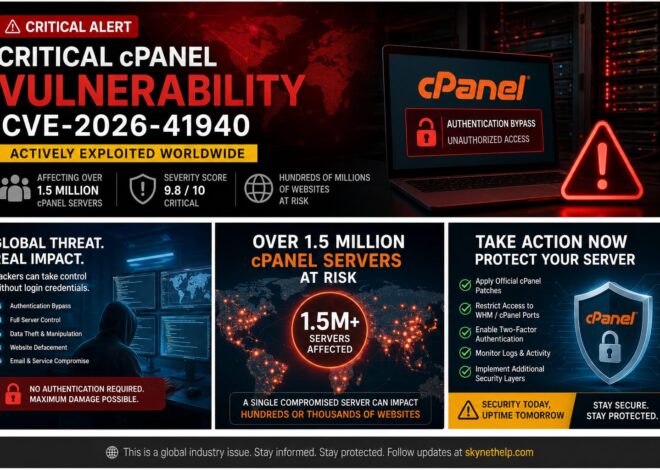
The sheer scale of this exploit is staggering. Experts estimate over 1.5 million servers are exposed. Those servers host roughly 70 million domains. WebPros International security update alerts went out to everyone. If you host websites for clients, this puts their businesses at risk. Picus Security explains how fast this is spreading. You cannot assume your server is safe just because it is small.
Why Two-Factor Authentication Does Not Protect You From This Exploit
You might think you are safe because you use Two-Factor Authentication (2FA). Sadly, you are wrong. This exploit happens before the server ever asks for a password or a 2FA code. The attacker exploits the login flow itself. The authentication bypass patch cPanel released is the only way to stop it. 2FA is great for normal security, but it is useless against a CVSS 9.8 fix.
CISA’s Known Exploited Vulnerabilities Catalog and the Federal Patching Deadline
The US government is taking this very seriously. CISA added this flaw to its Known Exploited Vulnerabilities (KEV) catalog. They set a strict federal agency cPanel patch deadline of May 3, 2026. This CISA KEV cPanel remediation deadline applies to federal networks. However, private businesses should follow the same timeline. You must apply the cPanel emergency patch guide steps before hackers find you.
The Cost of Waiting — What Attackers Can Do on an Unpatched Server
Waiting is a massive mistake. Once attackers get in, they deploy botnets. Security researchers on X (formerly Twitter) noted the Mirai variant is already active. Many unpatched servers are getting hit by the “nuclear.x86” botnet. Hackers install the “XMRig” crypto miner to steal your server resources. They also steal AWS and cloud credentials. To fix the cPanel hack vulnerability, you must update immediately.
Which cPanel Versions Are Vulnerable and Which Are Safe?
Before we update cPanel via SSH, you must know if you actually need the patch. Not every version is vulnerable, but most recent ones are.
Full List of Vulnerable cPanel and WHM Version Numbers
The vulnerability affects many major builds. The cPanel official advisory details list the vulnerable tiers. Almost all versions released before April 28, 2026, are at risk. If you are running 11.136.0.4 or older, you are likely vulnerable.
Full List of Patched and Safe cPanel Build Numbers
cPanel released updates across all supported tiers. The cPanel patched versions list includes:
- cPanel 11.136.0.5 patched build
- cPanel 11.134.0.20 patched
- cPanel 11.132.0.29 update
- cPanel 11.126.0.54 patch
- cPanel 11.118.0.63 fix
- cPanel 11.110.0.97 update
If your server matches one of these builds, you are safe from this specific flaw.
End-of-Life cPanel Versions and Their Vulnerability Status
What if you run an old, unsupported version? This is a huge problem. You face a severe cPanel update EoL version risk. cPanel does not patch End-of-Life (EoL) software. If you run an EoL cPanel End-of-Life version update, you must upgrade your entire server OS. Do not ignore this. Read our VPS management setup guide to learn how to migrate to a supported OS safely.
WP Squared and DNSOnly Vulnerability Status
This bug does not just affect the main WHM panel. You also need a cPanel DNSOnly patch. WP Squared is also vulnerable. Ensure you apply the WP Squared security update if you use it on your servers.
Before You Start — Check Your Current cPanel Version
You must check your current version before you do anything else. This prevents you from breaking things unnecessarily.
How to Log Into Your Server via SSH as Root
You need root access to check your version properly. Open your terminal or a program like PuTTY. Type ssh root@your-server-ip. Press enter and type your root password. If you are new to this, read our guide on remote access to your VPS.
Running the Version Check Command
Once you log in, you need to run a simple cPanel version check terminal command. Type this exactly:
/usr/local/cpanel/cpanel -V
Hit enter. The server will print a short number on the screen.
How to Read the Version Output and Confirm If You Need to Update
Look at the number. It might say something like 11.136.0.3. Compare that number to the safe list above. Because 11.136.0.3 is lower than the cPanel 11.136.0.5 patched build, you must update. If the number matches the safe list exactly, you are already patched.
Step 1 — Run the Forced cPanel Update Script
Now we start the actual fix. We will use a command line script to force the update. This is the fastest way to secure your server.
The /scripts/upcp –force Command Explained
To update cPanel via SSH, you need a specific command. Type this in your terminal:
/scripts/upcp --force
This is the /scripts/upcp –force command. The --force part is crucial. It tells cPanel to bypass normal checks and reinstall the latest files. This cPanel update script SSH command ensures the patch applies correctly.
What Happens on the Server During the Update Process
When you press enter, text will scroll down your screen very quickly. cPanel is downloading fresh files from its servers. It is replacing the vulnerable login scripts. It checks your databases, email server, and DNS settings. Do not close your terminal window while this runs.
How Long the Update Takes and Whether Your Sites Stay Online
A normal forced update takes about 10 to 15 minutes. It depends on your server speed. The good news? You can do a cPanel update without downtime. Your hosted websites will stay online. Your clients will not even notice you are doing a cPanel WHM security update step by step.
Step 2 — Verify the Patch Was Applied Successfully
Never assume an update worked. You must verify it. Computers fail, and networks drop connections.
Running the Version Confirmation Command After the Update
Run the cPanel update confirmation command again:
/usr/local/cpanel/cpanel -V
Check the output. It should now show a patched version number.
Matching Your Build Number Against the Safe Versions List
Compare the output to the safe list again. Did it change to 11.136.0.5 or 11.110.0.97? If yes, the files are updated. This is crucial cPanel update verification.
What to Do If the Version Did Not Change After Running upcp
Sometimes the script fails. You might run out of disk space. Your server might block the connection. If the version stays the same, look at the error log on your screen. You might need to free up hard drive space or check your network.
Step 3 — Restart the cpsrvd Service to Activate the Patch
Updating the files is only half the job. The vulnerable code is still running in your server’s active memory. You must restart the service to load the new, safe code.
The /scripts/restartsrv_cpsrvd Command Explained
To clear the memory, you must restart the cPanel service. Type this command:
/scripts/restartsrv_cpsrvd
This is the restartsrv_cpsrvd command. It forces the WHM and cPanel web server to reboot.
Why Restarting cpsrvd Is Mandatory After Patching
If you skip a cPanel cpsrvd restart, hackers can still bypass your login. The old code stays active until the service stops and starts again. Doing this locks the door completely.
Confirming the Service Restarted Successfully
The terminal will tell you if the restart worked. It will say cpsrvd restarted successfully. If it fails, try running the command a second time.
Step 4 — Update cPanel When Auto-Updates Are Disabled or Version Is Pinned
Some servers refuse to update. This usually happens because an admin changed the settings previously. We must fix those settings first.
How to Identify If Your Server Has Auto-Updates Disabled
If your update failed, check your WHM auto-update disabled settings. Some server owners block updates to prevent features from changing. You can check this by viewing /etc/cpupdate.conf. If you see CPANEL=never, your updates are blocked.
Using the whmapi1 set_tier Command to Target a Specific Patched Build
You can change your release tier directly from SSH. Use the cPanel tier update command:
whmapi1 set_tier tier=release
This whmapi1 set_tier command moves you to the stable release track. This track contains the necessary security patches.
Force Updating a Pinned cPanel Version Step by Step
Sometimes a cPanel pinned version update is required. A pinned version locks cPanel to an exact build number. You must remove the pin to get the patch. Open /etc/cpupdate.conf and change the pinned version to stable or release. Then, run the /scripts/upcp --force command again.
Troubleshooting When the upcp Script Fails or Returns an Error
If you still see errors, check your licenses. Make sure your server can resolve DNS. Sometimes, a simple reboot of the whole server fixes weird update glitches. If you struggle with constant hosting errors, consider reviewing our top 5 web hosting issues guide.
Step 5 — Apply the Patch Through WHM Dashboard (No SSH Alternative)
Some people hate using the terminal. That is completely fine. You can apply the patch from your web browser instead.
Spotting the Red Critical Security Warning Banner in WHM
Log into WHM. Look at the top of the screen. You should see a giant cPanel WHM red warning banner. This banner warns you about CVE-2026-41940. It is impossible to miss.
Running the Update Directly From the WHM Interface
Click the button inside that red banner. It will take you to the Upgrade to Latest Version page. Click “Click to Upgrade”. A black box will appear on your screen showing the update progress.
Verifying the Patch Through the WHM Version Display
When it finishes, look at the top right corner of WHM. The version number is displayed right there. Make sure it matches the safe cPanel patched versions list. Do not forget to enable cPanel auto-update enable WHM settings for the future.
Why SSH Is Still Preferred Over WHM Dashboard for Critical Updates
While the WHM dashboard is easy, I always prefer SSH. SSH gives you better error messages. It rarely times out. For a cPanel update for beginners, WHM is okay. But for maximum reliability, stick to the terminal.
What to Do If You Cannot Patch cPanel Right Now
Maybe you run a custom setup. Maybe you cannot restart services right now. You still need emergency protection. Here is how to stop the hackers temporarily.
Blocking the Vulnerable Ports at the Firewall as an Emergency Measure
If you cannot patch, you must block access to the login pages. You will use a firewall to block ports 2083 2087 firewall access. This cuts off the attackers completely.
Full List of Ports to Block — 2082, 2083, 2086, 2087, 2095, 2096, 2077, 2078
You need to block a lot of ports. Block cPanel WHM port 2082 2083 2086 2087. You must also block cPanel webmail port 2095 2096. Do not forget the cPanel WebDisk port 2077 2078. You can run a quick iptables cPanel port block command to drop traffic to these ports from outside IP addresses.
Stopping the cpsrvd and cpdavd Services Until Patching Is Possible
Another option is to just turn off the login service. Run /scripts/restartsrv_cpsrvd --stop. This kills the WHM panel entirely. Your websites will stay online, but nobody can log into cPanel.
Using CSF Firewall to Restrict Access to Trusted IP Addresses Only
The smartest temporary fix is a cPanel CSF firewall configuration. Open your CSF settings. Allow your own home or office IP address. Block everyone else from accessing port 2087. This lets you work while locking hackers out.
Why Temporary Firewall Measures Are Not a Substitute for Patching
Do not get lazy. A firewall rule is a band-aid. Hackers constantly find ways around IP blocks. CVE-2026-41940 mitigation steps always require applying the official patch eventually.
Step 6 — Run the Official cPanel IOC Detection Script
Once patched, you must check if hackers got in before you updated. cPanel provides a free script for this.
Where to Get the Official Detection Script From cPanel
The official cPanel support page provides a detection script. Copy the code from their advisory. Save it to your server as ioc_checksessions_files.sh.
How to Run the ioc_checksessions_files.sh Script via SSH
Run this command in your terminal:/bin/bash ./ioc_checksessions_files.sh
This script scans your session files. It looks for the specific patterns hackers use to bypass the login.
Understanding CRITICAL and WARNING Results
If the script outputs CRITICAL, you have a massive problem. It means someone successfully exploited your server. If you see WARNING, it means someone tried, but it might be a false positive. Treat any hit seriously. Look at discussions on the Reddit cPanel community to see what other admins are finding.
Using the watchTowr Detection Artifact Generator as a Second Check
Some security firms offer secondary scanners. Running multiple scanners ensures you do not miss hidden malware. If your server is hit, you have a lot of cleanup to do.
Step 7 — Purge All Compromised Sessions
If the script shows an intrusion, you must kick the hackers out immediately.
Clearing the /var/cpanel/sessions/raw/ Directory
Hackers leave fake session files behind. You must perform a cPanel session purge after update. Go to /var/cpanel/sessions/raw/ and delete all files inside.
Clearing the /var/cpanel/sessions/cache/ Directory
Do the exact same thing for the /var/cpanel/sessions/cache/ folder. Deleting these files forces everyone logged into cPanel or WHM to log out instantly. This severs the hacker’s active connection.
Why Purging Sessions Must Happen Before Any Password Resets
If you change passwords while the hacker is still logged in, they can just steal the new passwords. You must purge sessions first. Kick them out, then change the locks.
Step 8 — Reset All Credentials on the Server
You cannot trust any password on your server after a breach. A full credential rotation after cPanel patch is strictly required.
Resetting the Root and WHM Admin Password
Start at the top. Change your root password using the passwd command via SSH. Make it incredibly long and complex. Never reuse an old password.
Resetting All cPanel User Account Passwords
You must force a password reset for every single client on your server. Yes, this is annoying. Yes, clients will complain. Do it anyway. A breached client account can destroy your server’s reputation.
Rotating Database and FTP Credentials
Hackers steal database files. Change your MySQL root password. Force users to change their FTP passwords. If you offer reseller hosting for WordPress agencies, warn your resellers to do the same.
Regenerating SSH Keys for Root and All IT Users
Passwords are not enough. Hackers often drop their own SSH keys into your server. Delete old keys in the /root/.ssh/authorized_keys file. Generate brand new keys for your IT staff.
Revoking and Reissuing All API Tokens
If you use WHM API tokens for billing software like WHMCS, delete them. Generate fresh tokens and update your billing panel. Hackers love stealing API tokens to maintain silent access.
Step 9 — Audit the Server for Backdoors and Persistent Access
Hackers want to stay hidden. They install backdoors so they can return later. You must hunt these down.
Scanning Cron Jobs for Hidden Malware Commands
A cron job is a scheduled task. Hackers use them to re-download malware every night. Check the cron jobs for every user on the server. Look for weird commands downloading files from unknown IP addresses.
Checking SSH Authorized Keys for Rogue Entries
As mentioned, look at the authorized_keys file for every single user account, not just root. Hackers often hide keys in random cPanel user accounts.
Auditing Email Forwarders, FTP Accounts, and WHM Hooks
Check for new, unknown FTP accounts. Look at email forwarders. Hackers sometimes set up forwarders to steal password reset emails. Check WHM hooks for malicious scripts that run when accounts are created.
Scanning public_html for Web Shells and Recently Modified PHP Files
Run an antivirus scanner like Imunify360 or ClamAV. Hackers drop PHP web shells into normal websites. These shells let them upload files through a web browser. Find all files modified between February and April 2026 and inspect them closely.
Checking WordPress Tables for Rogue Admin Accounts
If you host WordPress sites, hackers will create hidden admin accounts in the database. Warn your customers. Tell them to check their user lists. This is one of the biggest hidden dangers of free hosting and poorly managed servers.
Identifying the nuclear.x86 Botnet and XMRig Crypto Miner
Look at your server’s CPU usage using the top command. If the CPU is pegged at 100%, you probably have the XMRig miner installed. Search your processes for anything named nuclear.x86. Security firm License Cage has documented this specific malware payload extensively. If you find it, you might need to wipe the server and restore from backups.
Step 10 — Review Access Logs for the Exploitation Window
You need to know exactly what the hackers did. Your logs hold the answers.
The Critical Date Range to Audit — February 23 to April 28 2026
The vulnerability existed for months before the patch. Focus your investigation on the period between February 23 and April 28, 2026. This is when the exploit was actively used in the wild.
Reading /var/log/wtmp for Suspicious IP Addresses
Check the /var/log/wtmp file to see who logged in via SSH. If you see IP addresses from countries you do not do business with, you were breached.
Auditing WHM and cPanel Access Logs for Unauthorized Logins
Look at /usr/local/cpanel/logs/access_log. Search for the specific CRLF injection strings mentioned in the cPanel advisory. If you see those strings, an attack happened.
What to Do If You Find Evidence of Unauthorized Access in the Logs
If the logs prove a breach, do not panic. Isolate the server. Take it offline if necessary. Restore your data from off-site backups taken before February 2026. This is the only way to be 100% sure the server is clean.
How Do Shared Hosting and Reseller Users Verify the Patch?
What if you do not have root access? If you are a client on a shared server, you cannot run SSH commands. You have to rely on your host.
Questions to Ask Your Hosting Provider About CVE-2026-41940
Open a support ticket right now. Ask them directly: “Have you applied the cPanel CVE-2026-41940 patch?” Ask them to confirm the current cPanel version number. A good host will answer quickly. Read our guide on questions to ask a shared hosting provider to spot bad customer service.
How Major Providers — Namecheap, KnownHost, InMotion, HostPapa — Responded
Most major hosts patched immediately. InMotion Hosting published a full follow-up on their response. Reliable providers take this seriously. If your host ignores you, move your websites immediately.
Reseller Responsibilities After the Provider Applies the Patch
If you are a reseller, the server admin does the cPanel reseller server patch. However, you must still warn your clients. Tell them to change their passwords. Be proactive. Your clients trust you to keep them safe.
How SkyNetHosting.Net Handled CVE-2026-41940 for Its Clients
At SkyNetHosting, we patched all managed servers within hours of the advisory. Our best web hosting sites for small business infrastructure uses automated patching. We ran the IOC scripts and confirmed zero breaches. A managed hosting cPanel update means you sleep peacefully while we do the hard work.
Long-Term cPanel Hardening After the CVE-2026-41940 Patch
Patching this one bug is great. But another bug will always appear eventually. You need a dedicated server cPanel patch strategy that focuses on deep defense.
Enabling Two-Factor Authentication for WHM and All cPanel Accounts
Yes, 2FA failed against this specific bug. But it stops 99% of normal brute-force attacks. Force 2FA for WHM. Encourage your clients to use it for their cPanel accounts.
Restricting WHM Access to Whitelisted IP Addresses
Do not leave WHM open to the whole world. Use the Host Access Control feature in WHM. Only allow your office or home IP address to access port 2087. Drop all other traffic.
Moving WHM Access Behind a VPN
For even better security, put your server behind a Virtual Private Network (VPN). You must connect to the VPN before you can even see the WHM login page. This hides your server from automated internet scanners.
Configuring ConfigServer Security and Firewall
Install ConfigServer Security & Firewall (CSF). It is a free, powerful plugin for cPanel. It stops port scans, blocks bad IPs, and sends you alerts when someone logs in.
Enabling cPHulk Brute Force Protection
Turn on cPHulk inside WHM. It tracks failed login attempts. If a hacker tries guessing a password 5 times, cPHulk blocks their IP address completely.
Setting Up File Integrity Monitoring
Use tools to monitor your system files. If a hacker changes a core file, the system sends you an email alert. You can catch an intrusion within seconds.
Automating Remote Backups as Part of Your Security Routine
Always assume you will get hacked one day. Hosting scams in 2025 often involve ransomware. Set up daily, automated backups. Store them on a completely different server. If a hacker wipes your main machine, you can restore everything with one click.
Take a deep breath. Follow these steps. Apply the patch. Secure your server. You can handle this.